







[vc_row font_color=”#000000″ css=”.vc_custom_1484024728007{background-color: #000000 !important;}”][vc_column][vc_column_text css=”.vc_custom_1572500092304{margin-bottom: 0px !important;padding-top: 5% !important;padding-right: 10% !important;padding-left: 10% !important;}”]
Who has time to fiddle around with masks in Photoshop?
[improve_connection text=”Do you want an Image Masking Software that cuts your time in half?”]
[/vc_column_text][vc_column_text css=”.vc_custom_1572500137710{margin-bottom: 0px !important;padding-top: 5% !important;padding-right: 10% !important;padding-left: 10% !important;}”]
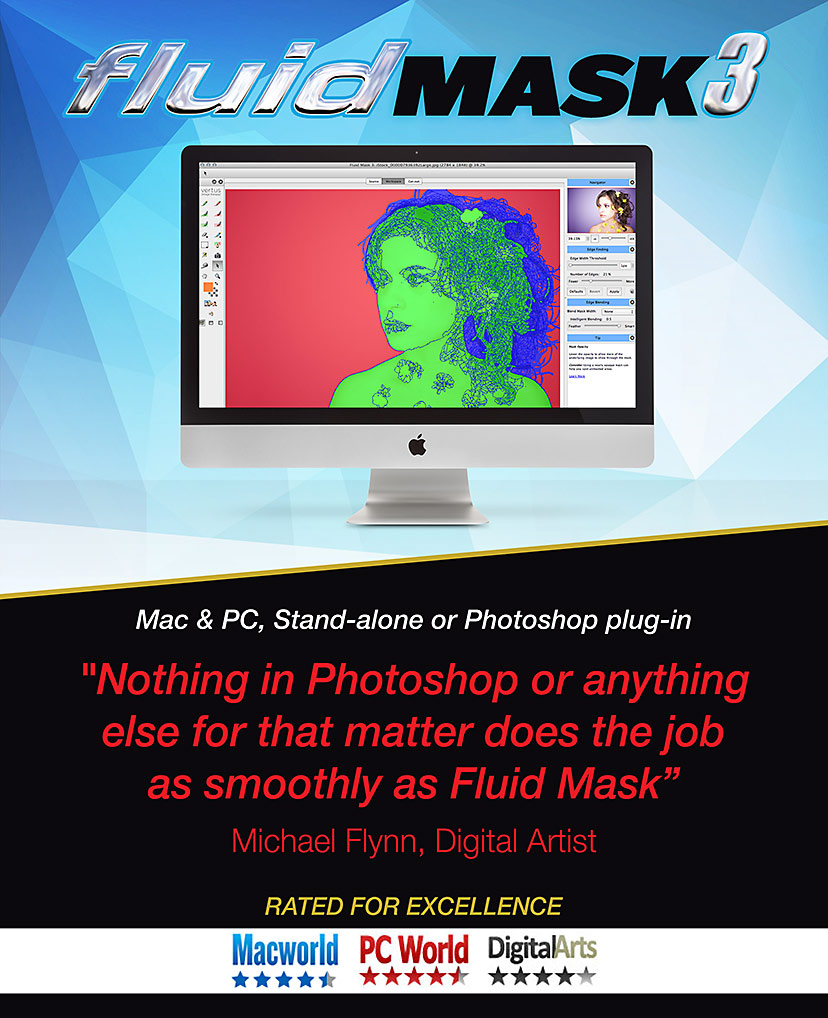
FLUID MASK 3: Your Best Bet On A Masking Software!
[/vc_column_text][vc_single_image image=”390301″ alignment=”center” css=”.vc_custom_1585655437935{padding-top: 1% !important;padding-right: 1% !important;padding-bottom: 1% !important;padding-left: 1% !important;}”][/vc_column][/vc_row][vc_row font_color=”#000000″ columns_height=”adjust_cols_height” css=”.vc_custom_1459836574595{background-position: center !important;background-repeat: no-repeat !important;background-size: cover !important;}” background_style=”normal”][vc_column width=”1/2″][vc_column_text css=”.vc_custom_1572500255092{margin-bottom: 0px !important;padding-top: 10% !important;padding-right: 10% !important;padding-left: 10% !important;}”]The bottom line is this. Time spent creating cut-outs is time wasted. It’s a non-creative task that keeps you beside your computer when you could be out shooting. And although no masking software solution is perfect, the Fluid Mask 3 will dramatically cut down the time you spend extracting objects from your backgrounds.
It works because it’s specifically made for its task.It’s tough to have a background as perfect as we have in our head! But it’s farely easy to create one virtually with the Fluid Mask 3.
Designed to scour all the nooks and crannies hiding in the edges, the Fluid Mask gives you more time to be creative. More time to do artistic finishes – not the manual labor. You won’t have to pore over each and every pixel. You’ll just have to fine-tune the ugly ones.
And if you’re thinking that this masking software is only for beginners or non-Photoshop users, well let’s rethink what it really does.
Fluid mask increases speed not complexity. It can be used all by itself as a standalone software or as Fluid Mask Photoshop Plugin. The Fluid Mask 3 is the smartest route to increasing your workflow efficiency and it’s well worth to be called as the best masking software.[/vc_column_text][/vc_column][vc_column width=”1/2″ css=”.vc_custom_1459836778226{padding-right: 0px !important;padding-left: 0px !important;background-position: center !important;background-repeat: no-repeat !important;background-size: cover !important;}”][vc_single_image image=”344075″ alignment=”center” css=”.vc_custom_1459841095792{padding-top: 10% !important;}”][/vc_column][/vc_row][vc_row][vc_column][vc_column_text css=”.vc_custom_1536208970484{padding-top: 3% !important;padding-right: 10% !important;padding-bottom: 5% !important;padding-left: 10% !important;}”]
You won’t have to limit your creativity because you’re worried about technical ability. You have the best masking software that makes compositing as easy as it should be. It’s like choosing to shoot digital over film, neither is better, but only one is quicker.
Fluid Mask 3 is just that. It’s the faster solution to the same need.
[/vc_column_text][/vc_column][/vc_row][vc_row font_color=”#ffffff” css=”.vc_custom_1443496992173{background-color: #000000 !important;}”][vc_column][vc_column_text css=”.vc_custom_1484823187743{padding-top: 8% !important;padding-right: 5% !important;padding-bottom: 5% !important;padding-left: 5% !important;}”]
How does it work? How is it faster?
If you’ve ever created a mask in Photoshop, you know it’s tedious. Worse – it’s only a nuts-and-bolts process to getting your final image. If there’s something better and faster, why not take it? What makes the Fluid Mask special is that it integrates better edge finding algorithms with an intuitive user experience to make sure you’re getting cleaner extractions.
Even as Fluid Mask Photoshop Plugin it decreases the complexities of creating masks and Photoshop and improves the entire workflow a thousand times. That’s the reason we consider it as the best masking software for Photoshop too.
For example, if you wanted to remove a person from a non-contrasting background, all you’d have to do is import your image, analyze its image segmentation, find out what you want to keep and paint away the background you don’t want.
Fluid Mask 3 is about simplifying your workflow.[/vc_column_text][vc_column_text css=”.vc_custom_1484026282857{padding-top: 2% !important;padding-right: 5% !important;padding-bottom: 5% !important;padding-left: 5% !important;}”]
Check out the video for more
[/vc_column_text][vc_video link=”https://youtu.be/mDx7n2z_E-0″ css=”.vc_custom_1536208959506{padding-right: 5% !important;padding-left: 5% !important;}”][/vc_column][/vc_row][vc_row font_color=”#000000″ css=”.vc_custom_1459840599455{padding-bottom: 5% !important;}”][vc_column][vc_column_text css=”.vc_custom_1459836932063{padding-top: 5% !important;padding-right: 8% !important;padding-bottom: 3% !important;padding-left: 8% !important;}”]
What can I do with this image masking software? Which techniques get faster?
[/vc_column_text][vc_row_inner css=”.vc_custom_1459836482498{padding-right: 10% !important;padding-left: 10% !important;}”][vc_column_inner width=”2/3″][vc_column_text css=”.vc_custom_1459836472719{padding-top: 5% !important;}”]
Fast Background Removal: If you’re a product photographer, you know background removal needs a quick and comprehensive workflow. Even if you’re not a product photographer, you know how annoying removing a background is in Photoshop. The Fluid Mask 3 makes this process considerably faster. In their studies, even 4x faster.
[/vc_column_text][/vc_column_inner][vc_column_inner width=”1/3″][vc_single_image image=”390302″ css=”.vc_custom_1488860131774{padding-top: 3% !important;}”][/vc_column_inner][/vc_row_inner][vc_row_inner css=”.vc_custom_1459836431158{padding-right: 10% !important;padding-left: 10% !important;}”][vc_column_inner width=”1/3″][vc_single_image image=”390303″ css=”.vc_custom_1488860109543{padding-top: 5% !important;}”][/vc_column_inner][vc_column_inner width=”2/3″][vc_column_text css=”.vc_custom_1459836460574{padding-top: 5% !important;}”]
Easy Sky Swapping: Have you shot a beautiful landscape but hated the sky you captured. Whether you wanted a gorgeous sunset and clear-blue sky, anything is better than sky that’s drab and uninteresting. With the Fluid Mask, you’ll have a process to replacing eyesores with your own composited beauty.
[/vc_column_text][/vc_column_inner][/vc_row_inner][vc_row_inner css=”.vc_custom_1459836414982{padding-right: 10% !important;padding-left: 10% !important;}”][vc_column_inner width=”2/3″][vc_column_text css=”.vc_custom_1459836446850{padding-top: 5% !important;}”]Flawless Hair/Fur Masking: Masking hair is a task that separates the beginners from the obsessed. If you can successfully mask hair, under 30 mins, without any eye-squinting, then you’re obsessed. For the rest us, those who want hair masking without any mundane tweaking, and still get the same results, once again, let me introduce you to my friend, Fluid Mask the 3rd. Better results. With less time.
[/vc_column_text][/vc_column_inner][vc_column_inner width=”1/3″][vc_single_image image=”390304″ css=”.vc_custom_1488860090518{padding-top: 5% !important;}”][/vc_column_inner][/vc_row_inner][/vc_column][/vc_row][vc_row font_color=”#000000″ css=”.vc_custom_1459840329239{background-color: #f7f7f9 !important;}”][vc_column][vc_column_text css=”.vc_custom_1459840584226{padding-top: 5% !important;padding-right: 10% !important;padding-left: 10% !important;}”]
When masking and removing backgrounds become as easy as “painting by the numbers”, imagine how much more you’ll able to do with this Image Masking Software.
[/vc_column_text][/vc_column][/vc_row][vc_row font_color=”#000000″ css=”.vc_custom_1459846477092{padding-right: 10% !important;padding-left: 10% !important;background-color: #f7f7f9 !important;}”][vc_column width=”1/3″ css=”.vc_custom_1459839280215{padding-right: 20px !important;padding-left: 20px !important;}”][vc_column_text]
Visual Image Segmentation
[/vc_column_text][vc_single_image image=”344109″ alignment=”center”][vc_column_text css=”.vc_custom_1459860558433{padding-top: 10px !important;}”]
Helps you create super-fine mask selections with ease. See exactly how your image is made up of segments of similar properties.
[/vc_column_text][/vc_column][vc_column width=”1/3″ css=”.vc_custom_1459839296407{padding-right: 20px !important;padding-left: 20px !important;}”][vc_column_text]
Intelligent Edge Blending
[/vc_column_text][vc_single_image image=”344110″ alignment=”center”][vc_column_text css=”.vc_custom_1459860606829{padding-top: 10px !important;}”]
It understands the width and morphology of an edge. Intelligent blending gets the closest to extracting the true character of the image.
[/vc_column_text][/vc_column][vc_column width=”1/3″ css=”.vc_custom_1459839308927{padding-right: 20px !important;padding-left: 20px !important;}”][vc_column_text]
Onscreen Help and Guidance
[/vc_column_text][vc_single_image image=”344111″ alignment=”center”][vc_column_text css=”.vc_custom_1459860627759{padding-top: 10px !important;}”]
It contains an in place tip window to guide through the use of it’s tools. With handy pointers and guidance to help you along.
[/vc_column_text][/vc_column][/vc_row][vc_row font_color=”#000000″ css=”.vc_custom_1459840289299{padding-top: 5% !important;padding-right: 10% !important;padding-left: 10% !important;background-color: #f7f7f9 !important;}”][vc_column width=”1/3″ css=”.vc_custom_1459839280215{padding-right: 20px !important;padding-left: 20px !important;}”][vc_column_text]
Color Based Selections
[/vc_column_text][vc_single_image image=”344121″ alignment=”center”][vc_column_text css=”.vc_custom_1459860754344{padding-top: 10px !important;}”]
Uses the Color Workspace and the Color Sampler to make extremely fine color based mask selections.
[/vc_column_text][/vc_column][vc_column width=”1/3″ css=”.vc_custom_1459839296407{padding-right: 20px !important;padding-left: 20px !important;}”][vc_column_text]
Localized Edge Detection
[/vc_column_text][vc_single_image image=”344120″ alignment=”center”][vc_column_text css=”.vc_custom_1459860655871{padding-top: 10px !important;}”]
Isolates difficult areas and apply alternative selections with all new edges find options.
[/vc_column_text][/vc_column][vc_column width=”1/3″ css=”.vc_custom_1459839308927{padding-right: 20px !important;padding-left: 20px !important;}”][vc_column_text]
Stored Workspace Settings
[/vc_column_text][vc_single_image image=”344119″ alignment=”center”][vc_column_text css=”.vc_custom_1459860642813{padding-top: 10px !important;}”]
It allows you to tailor the default settings to your needs and better yet – process complete studio runs with ease!
[/vc_column_text][/vc_column][/vc_row][vc_row font_color=”#000000″ css=”.vc_custom_1459840299203{padding-top: 5% !important;padding-right: 10% !important;padding-bottom: 5% !important;padding-left: 10% !important;background-color: #f7f7f9 !important;}”][vc_column width=”1/3″ css=”.vc_custom_1459839280215{padding-right: 20px !important;padding-left: 20px !important;}”][vc_column_text]
Forced Edge
[/vc_column_text][vc_single_image image=”344118″ alignment=”center”][vc_column_text css=”.vc_custom_1459839984414{padding-top: 10px !important;}”]
If the flexible image segmantation adjustments and resolution controls weren’t enough, you can even add in your own edges.
[/vc_column_text][/vc_column][vc_column width=”1/3″ css=”.vc_custom_1459839296407{padding-right: 20px !important;padding-left: 20px !important;}”][vc_column_text]
Localized Blending Options
[/vc_column_text][vc_single_image image=”344117″ alignment=”center”][vc_column_text css=”.vc_custom_1459840035589{padding-top: 10px !important;}”]
Fluid Mask 3 includes complex blending tools for within a patch, to adjust the localized blending parameters to be different from the larger image. Combine multiple blending techniques on one image.
[/vc_column_text][/vc_column][vc_column width=”1/3″ css=”.vc_custom_1459839308927{padding-right: 20px !important;padding-left: 20px !important;}”][vc_column_text]
Adjustable Workspace Resolution
[/vc_column_text][vc_single_image image=”344116″ alignment=”center”][vc_column_text css=”.vc_custom_1459840066363{padding-top: 10px !important;}”]
By adjusting the working resolution of the segmentation processing you can create broader and smoother segments, and choose to ignore finer details. Plus, there’s no loss of image quality.
[/vc_column_text][/vc_column][/vc_row][vc_row][vc_column][vc_column_text css=”.vc_custom_1459920469214{padding-top: 5% !important;padding-right: 10% !important;padding-bottom: 5% !important;padding-left: 10% !important;}”]
Before After Examples
[/vc_column_text][/vc_column][/vc_row][vc_row font_color=”#000000″ css=”.vc_custom_1459856680730{padding-top: 3% !important;padding-right: 10% !important;padding-left: 10% !important;}”][vc_column width=”1/2″][vc_single_image image=”344139″][/vc_column][vc_column width=”1/2″][vc_single_image image=”344141″][/vc_column][/vc_row][vc_row font_color=”#000000″ css=”.vc_custom_1459856689819{padding-top: 3% !important;padding-right: 10% !important;padding-bottom: 5% !important;padding-left: 10% !important;}”][vc_column width=”1/2″][vc_single_image image=”344164″][/vc_column][vc_column width=”1/2″][vc_single_image image=”344170″][/vc_column][/vc_row][vc_row font_color=”#000000″ css=”.vc_custom_1459846461959{padding-top: 5% !important;padding-bottom: 5% !important;background-color: #000000 !important;}”][vc_column][vc_column_text css=”.vc_custom_1459846631048{padding-top: 5% !important;padding-right: 10% !important;padding-bottom: 10px !important;padding-left: 10% !important;}”]
Tech Specs
Minimum System Requirements-
[/vc_column_text][vc_row_inner css=”.vc_custom_1459846415535{padding-right: 10% !important;padding-bottom: 5% !important;padding-left: 10% !important;}”][vc_column_inner width=”1/2″][vc_column_text]
Compatible with both Mac & Windows
- XGA (1024×768) 24-bit (millions of colors) display
- 512 MB RAM (1 GB recommended)
- 250 MB of available hard-disk space
- Web connection or email access for product activation
Mac version 3.3.16
- PowerPC G4/G5 or Intel processor or better
- Mac OS X Tiger v10.4.11, Leopard v10.5.8, Snow Leopard v10.6.2, or later
[/vc_column_text][/vc_column_inner][vc_column_inner width=”1/2″][vc_column_text]Windows version 3.3.17
- 1GHz processor
- Microsoft Windows XP Service Pack 3, Vista Service Pack 2, or later, Windows 7 & Windows 8
Fluid Mask 3 as a Photoshop plug-in
- Subscription version: Photoshop CC, CC2014, CC2015 (inc’ 2015.1.2 release)
- Legacy versions: CS2 (9.0) or later, (CS4 (11.0) or later is recommended), x86 and x64 builds.
- Photoshop Elements: Officially supported up to and including version 9 (CS5), you should still be bale to install in later versions.
[/vc_column_text][/vc_column_inner][/vc_row_inner][/vc_column][/vc_row][vc_row font_color=”#000000″ css=”.vc_custom_1459846489294{padding-top: 5% !important;padding-right: 10% !important;padding-bottom: 5% !important;padding-left: 10% !important;background-color: #f7f7f9 !important;}”][vc_column][vc_row_inner css=”.vc_custom_1459845967069{padding-top: 5% !important;padding-bottom: 5% !important;}”][vc_column_inner][vc_column_text]
FAQs
Q: How many computers can I run Fluid Mask masking software on using a single licence code?
A: You can activate on up to (and including) two machines for your own personal use, and licence codes are not platform dependent, i.e you could activate on 1x Windows machine and 1x Mac with a single code.
Q: Does Fluid Mask work stand-alone or as a Fluid Mask Photoshop Plugin?
A: Both – you can launch and use Fluid Mask as a standalone app’ or install as a plug in to Photoshop (we also plug into Serif Photoplus X7 and X8)
Q: Which version(s) of Photoshop does Fluid Mask plug into?
A: Adobe Photoshop CC, CC2014, CC2015 and legacy versions: CS2 (9.0) or later, CS4 (11.0) or later is recommended.
Q: How about plugging into Lightroom?
A: Not at the moment, bit this is being looked at.
Q: I already have a version of Fluid Mask Masking Software. Do I need to pay to upgrade, what’s the difference in versions?
A: Anybody already owning any version of Fluid Mask 3 can update to the latest build for free. They just need to launch their current version of Fluid Mask and via menu bar go to ’check for updates’.
[/vc_column_text][/vc_column_inner][/vc_row_inner][/vc_column][/vc_row]

RM –
I do have this product as well as others used for the same task and I have to say that Fluid Mask is my number one choice for difficult masking situations. There is a steep learning curve to using the program effectively but the results are nothing less than amazing when done right. In my opinion, Fluid Mask excels above everything else when it comes to masking very fine details like hair and smoke; something that most other programs struggle with. Extracting simpler objects from their backgrounds can sometimes be done with just a few quick swipes. More complex subjects will require you to spend time refining your selections but Fluid Mask has a tool for every possible problem you could face. If you’re as picky about your extractions as I am, Fluid Mask is worth a try. I think their website also offers a limited “trial” before you buy, so that’s something you might consider.
A.M. –
I’d give this 4.5 stars. This software has a steep learning curve; the introduction video makes it appear much easier than it actually is to get the advanced results. Also, it takes more time and patience with complex backgrounds. The advantage of the software is that it does speed of the workflow and with the plugin in Photoshop, it is easier and faster to use.
The program seems to have every tool available to help you achieve the complex task of advanced extraction – i.e. from complex backgrounds and images where the background and object are similar in color. (There is a trick you can use using alpha channel masks to create selections to gain more accurate selections.)
I sampled the plugin first on backgrounds where I needed to eliminate the sky and it worked near flawlessly and gave an almost perfect result (99.5%). I had to touch it up in Photoshop afterward, but it was fairly effortless.
Overall, I do recommend this product. With a little patience, practice, and following the tutorials – it can easily be one of the go-to tools for a faster and more efficient workflow for image editing. After learning the program, I imagine it would easily be a 5-star product.