Unleash The Power of Photoshop For Amazing Results!
Let’s play a game of what-ifs. What if you were not intimidated by Photoshop layers & masks?
What if you had the confidence and the flexibility to take your photos in the direction of your choice?
What if you could edit in your sleep? What’s the catch? All this is practically possible!
Photoshop is a maze with unlimited tools, techniques, and possible results. Layers and masks are your navigation panel!
The foundation of Photoshop is built on layers and the art of masking these layers.
If you don’t wrap your head around these, you’ll be stuck forever!
Photoshop layers and masks are on top of the priority list of things you need to learn.
Without them, your work, your creativity, and your range, all go for a toss. It’s that simple.
Thank God for you, layers and masks are so incredibly simple to use and easy to understand! All you need to do is ace the basics!
If you’ve been keeping your distance from layers and masks because you thought they were somehow beyond your skill level, well you were mistaken.
You already have the skill and the confidence, all you need is a gentle push in the right direction. This brilliant course is designed to do just that!
A Masterclass on Photoshop Layers & Masks
What's Included in Your Purchase
Full Video Course: The full video course on layers & masks with over 6 hours of training!
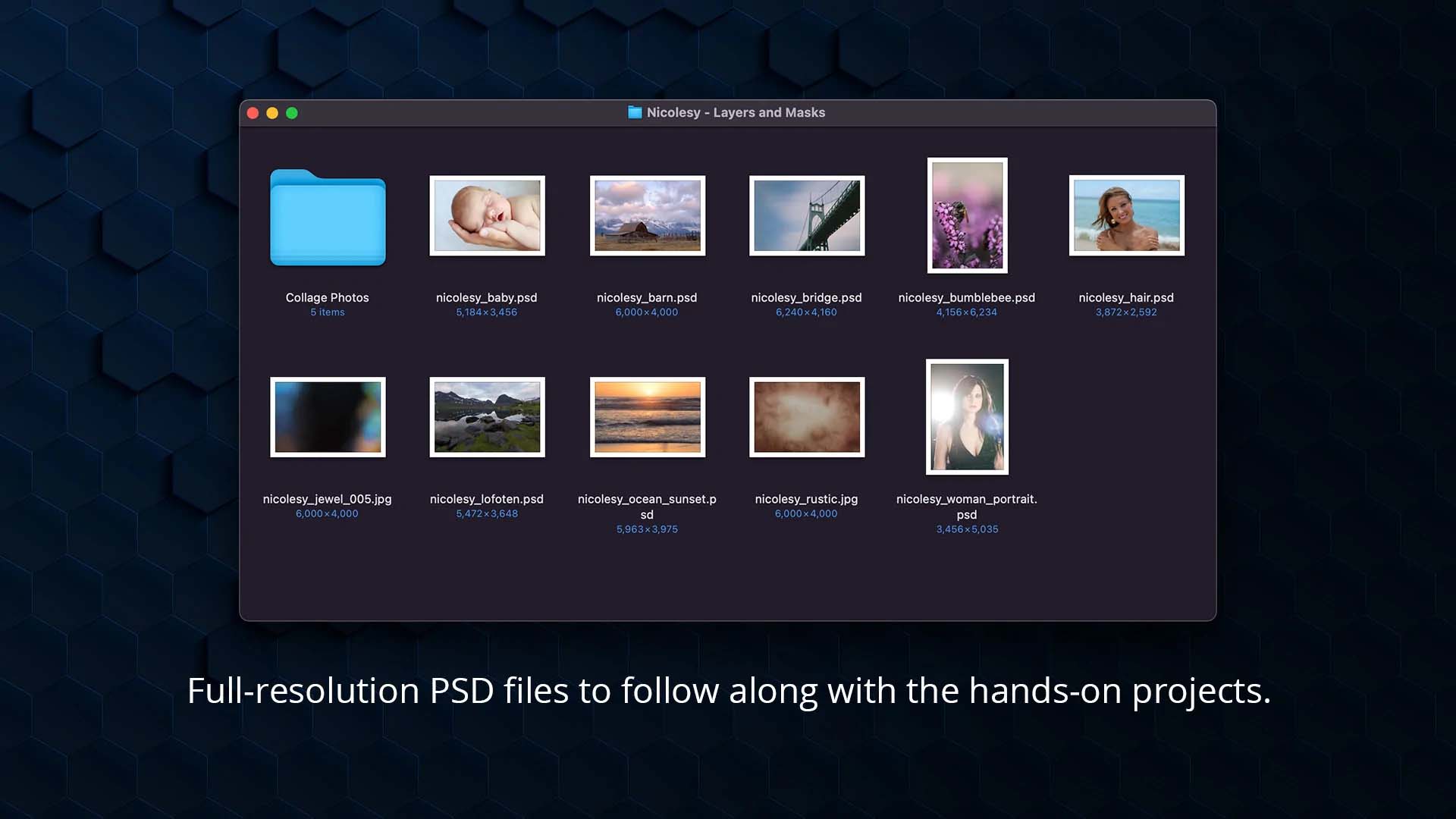
Project Files: Downloadable project files (.psd) so that you can follow along with the hands-on projects included in this course.
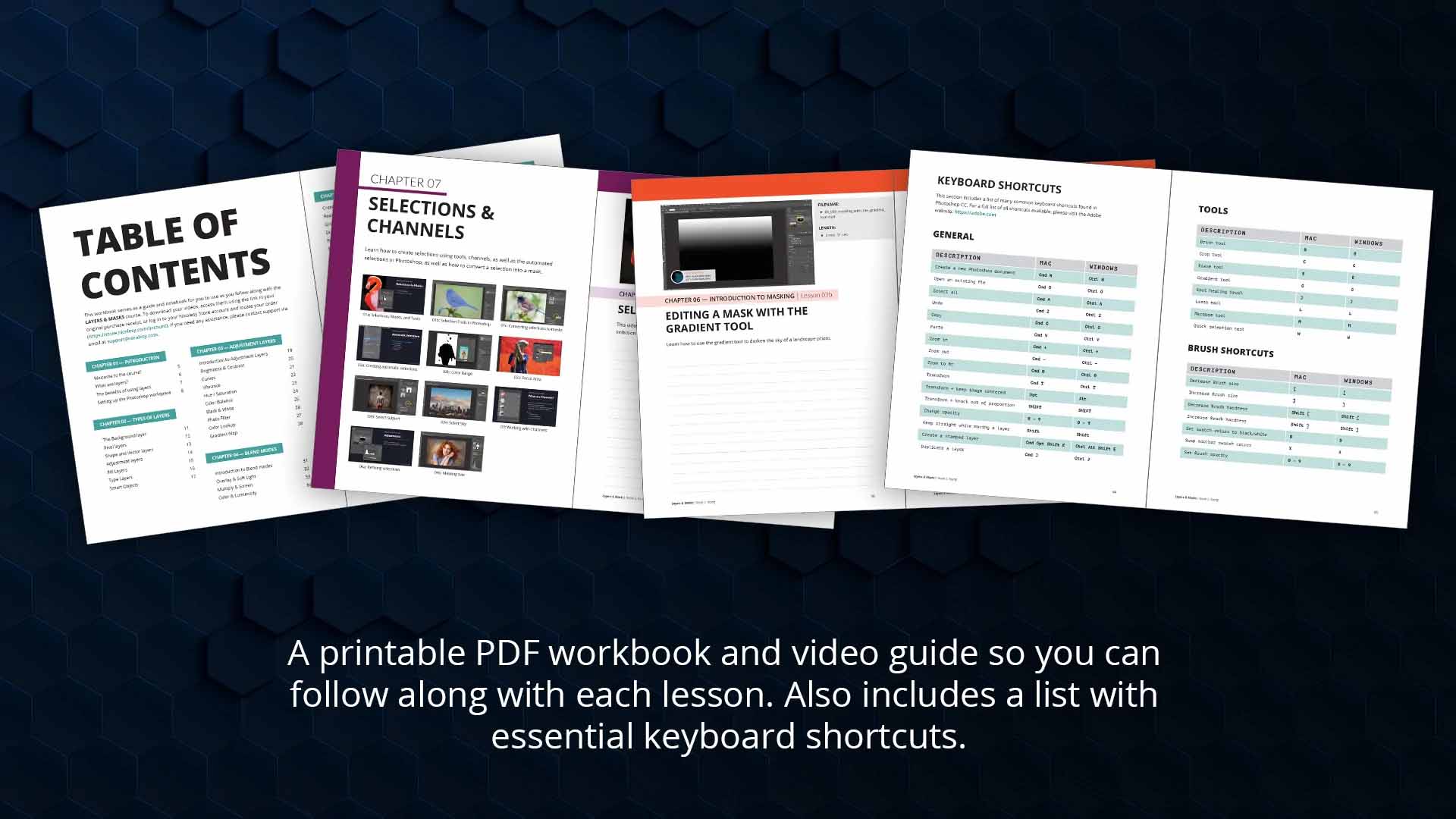
PDF Workbook: A PDF workbook to help guide you through the course. This workbook includes each lesson description with a note-taking area you can print out and use as you make your way along the course. You can use this PDF digitally as a guide, or print it so that you can take notes and follow along.
Keyboard Shortcut List: A list of all keyboard shortcuts used throughout the course, as well as some additional common shortcuts you might want to use in Photoshop. This is included in the PDF workbook.
Nicolesy Photoshop Workspace: A .psw workspace file for Adobe Photoshop CC.
Table Of Contents
01: What are layers?
02: The benefits of using layers
03: Setting up the Photoshop workspace
01: What are layers?
02: The benefits of using layers
03: Setting up the Photoshop workspace
01: Introduction to Adjustment Layers
02: Brightness & Contrast
03: Curves
04: Vibrance
05: Hue/Saturation
06: Color Balance
07: Black & White
08: Photo Filter
09: Color Lookup
10: Gradient Map
01: Introduction to blending modes
02: Overlay and Soft Light
03: Multiply and Screen
04: Color and Luminosity
01: Creating new layers
02: Rearranging layers
03: Grouping layers
04: Duplicating layers
05: Renaming layers
06: Merging layers
07: Transforming layers
08: Layer visibility
01: What is masking?
02: Creating a mask
03a: Editing a mask
03b: Editing a mask with the Gradient tool
03c: Editing a mask with the Brush tool
01a: Selections, Masks, and Tools
01b: Selection Tools in Photoshop
01c: Converting selections to masks
02a: Creating automatic selections
02b: Color Range
02c: Focus Area
02d: Select Subject
02e: Select Sky
03: Working with Channels
04a: Refining selections
04b: Masking hair
01: Previewing layer masks
02: Duplicating layer masks
03: Masking groups
04: Linked masks
05: Clipping masks
01: Bumblebee
This classic photo edit shows how to use masking to create selective edits to create a finished look.
02: Baby with Texture
Create a textured portrait using advanced blending techniques to remove the texture from part of the image without removing the blended effects, such as color and tone.
03: Luminosity Masking (Channels)
Learn how to edit a landscape photo using luminosity masking with channels to selectively edit the tones in the photo.
04: Luminosity Masking (Color Range)
Learn how to edit a landscape photo using luminosity masking with the Color Range tool to selectively edit the tones in the photo.
05: Stylized Portrait
This lesson shows how to add creative styling to a portrait image using layers, masks, and blend modes.
06: Bridge in a Frame
Learn how to add a photo to a frame and mask it so it looks like it’s coming out of the frame (a “spilling frame” technique).
07: Replacing a Background
This video shows how to add a new backdrop to a photo of a person, mask their hair, and stylize the photo so it blends together.
08: Creating a Collage
Learn how to create a collage template for your images from a new blank document in Photoshop.

A Masterclass On Layers & Masks
Before/After Results With Photoshop Layers & Masks
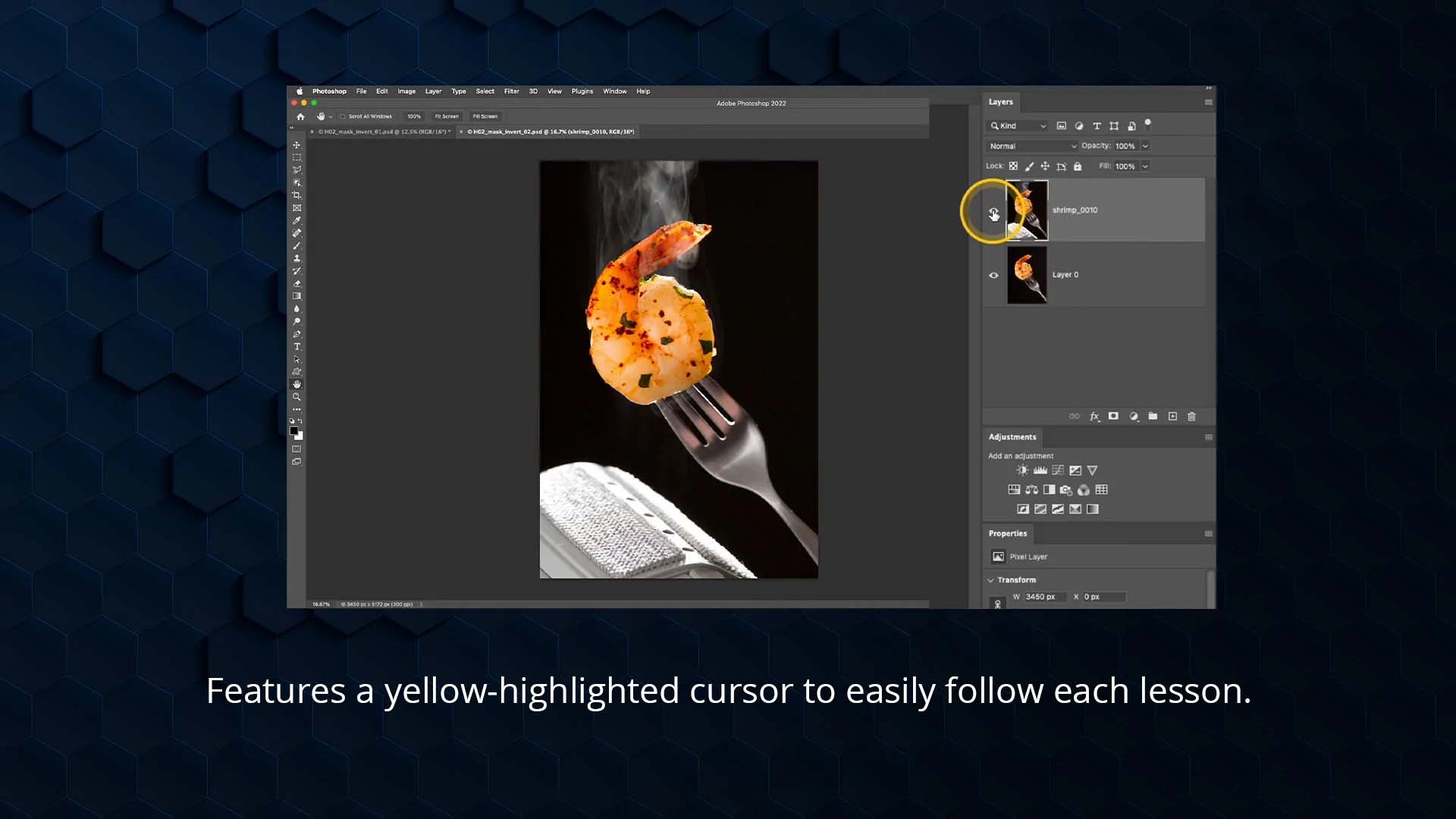
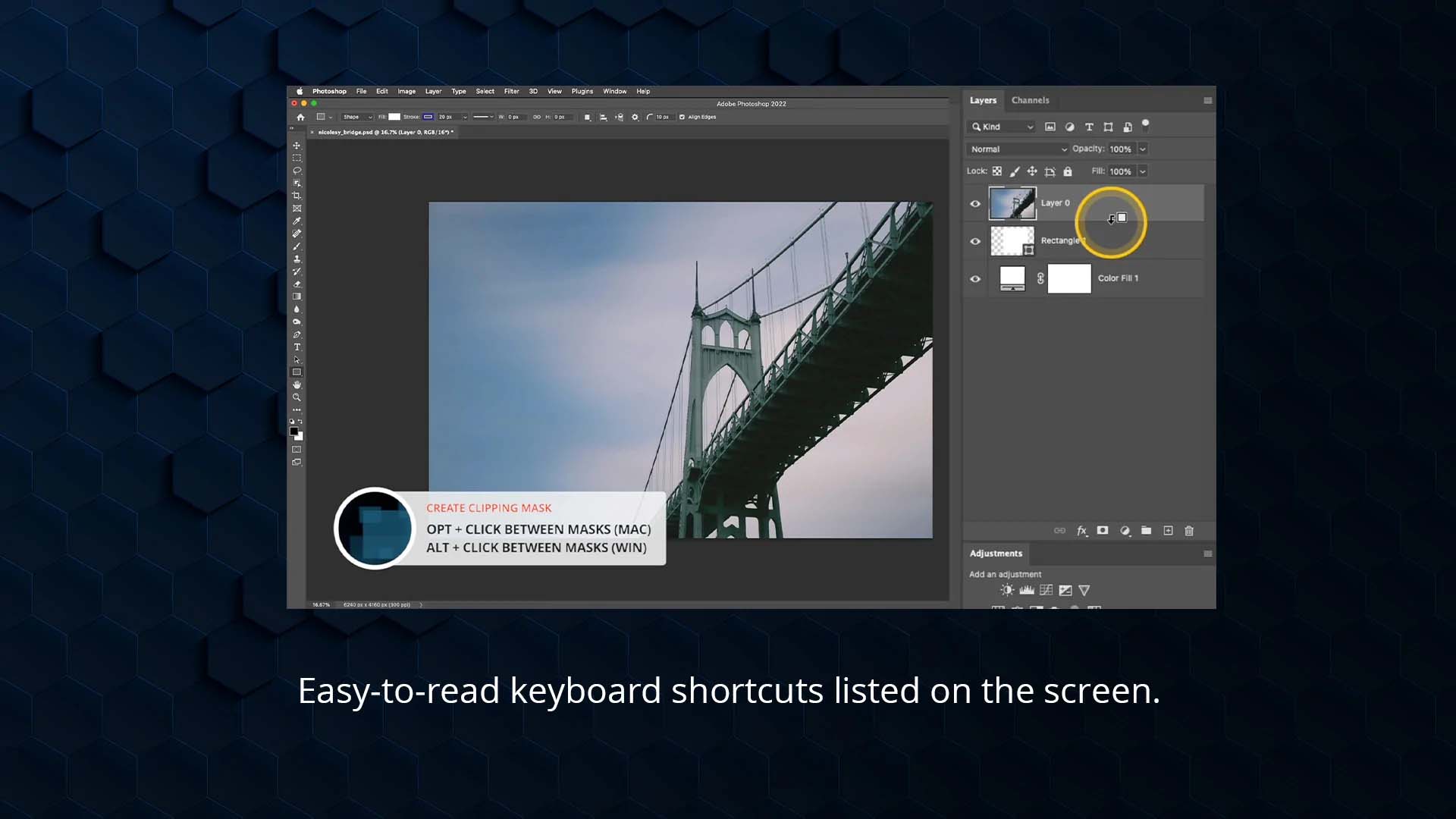
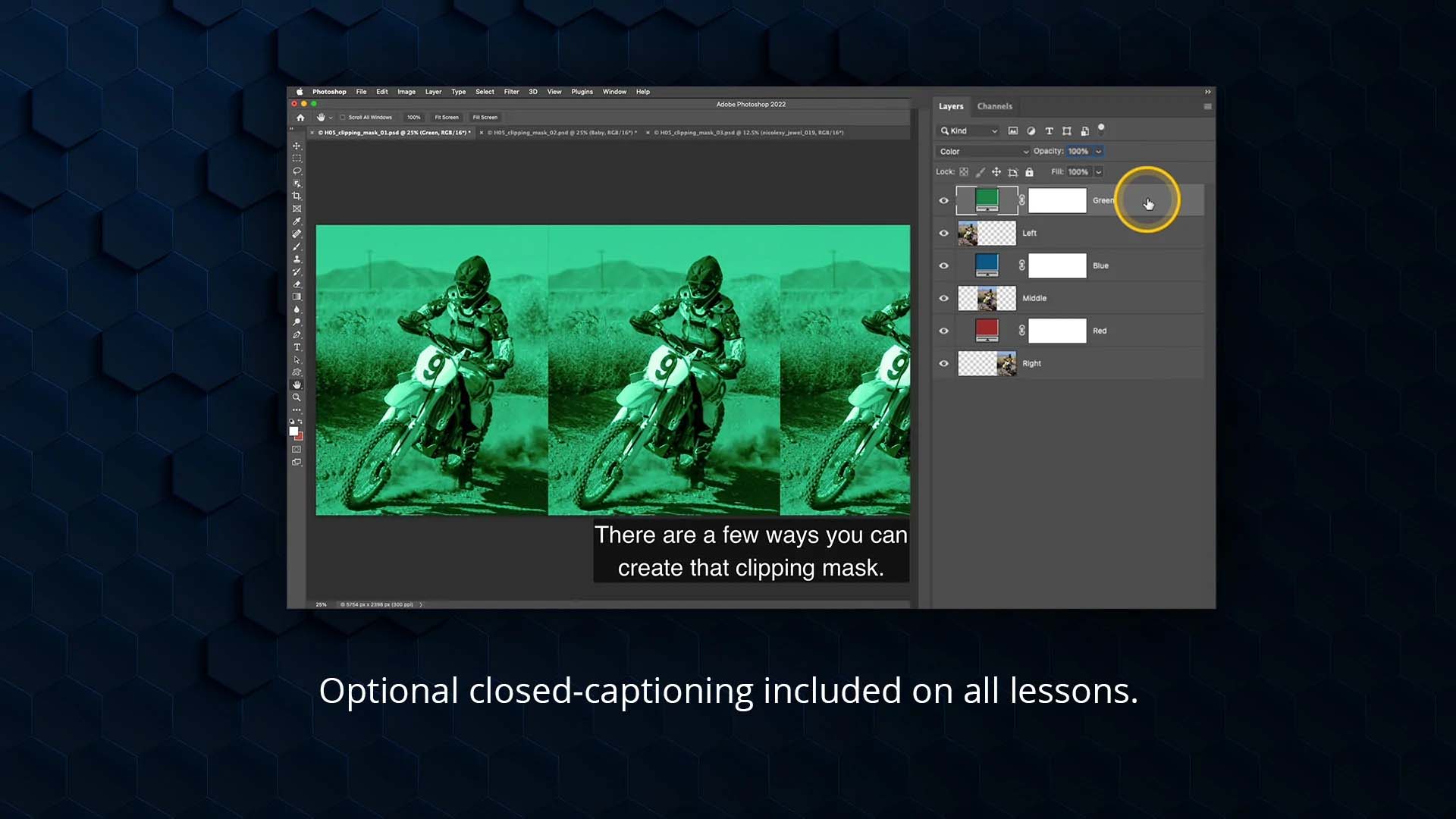
Unique Features That Set This Course Apart :


⭐️ Raving Reviews For This Masterclass ⭐️
Use Photoshop Layers & Masks With Confidence
Want to know a surprising fact? It is not the complicated stuff that throws Photographers off, it’s the basics!
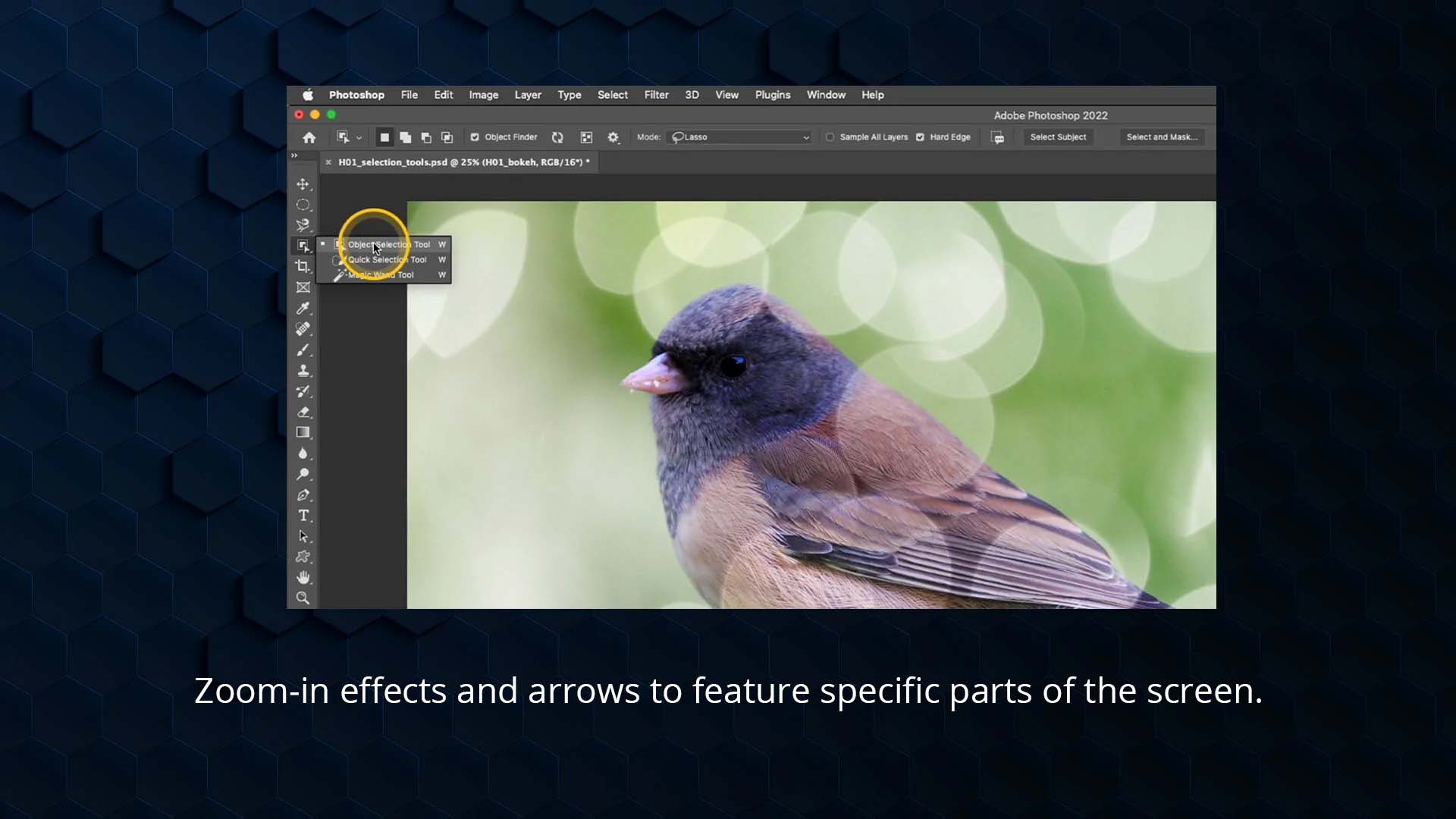
That’s exactly what this course is here to do. It features easy-to-follow videos that walk you through Photoshop layers and masking for photographers using Photoshop CC.
It puts together 25 years of Photoshop knowledge and experience from a famous photographer – Nicole Young.
She will help fill the gap of knowledge that is keeping your ordinary pictures from becoming extraordinary ones! The lessons dive deep into understanding how to work your way through layers.
Not just that, you will learn their importance, why and where they should be used, and most importantly, what they can do for your photograph.
You will also gain an understanding of masking and learn how it works together with layers.
The course begins with a detailed walk-through of the basic concepts of layers.
You will then see live examples of how masking improves photo edits, replaces backgrounds seamlessly, creates improved texture blends, and much more!
You will also learn to adjust your images non – destructively, get tips on masking fine details like hair, and editing landscape photos with luminosity – and this is just the tip of the iceberg!
Along with detailed training, you will also receive a start to finished tutorials and downloadable project files for you to practice. What else do you need right?
This is your chance to use Photoshop with confidence, have a deeper understanding of fundamentals, and stop relying on plugins to create photos. All this knowledge and resources worth $100, are yours to grab for just $59.99! What are you waiting for? Let that creativity flow!


Reviews
There are no reviews yet.