







[vc_row font_color=”#ffffff” css=”.vc_custom_1509949651531{padding-top: 17% !important;padding-right: 10% !important;padding-bottom: 17% !important;padding-left: 10% !important;background-image: url(https://abz.photowhoa.com/wp-content/uploads/2015/03/photoshop-plugin-01.jpg?id=387543) !important;background-position: center !important;background-repeat: no-repeat !important;background-size: cover !important;}” background_style=”parallax”][vc_column font_color=”#ffffff” css=”.vc_custom_1414497512096{padding-right: 0px !important;padding-left: 0px !important;}”][vc_row_inner][vc_column_inner][vc_column_text css=”.vc_custom_1486532696832{margin-bottom: 0px !important;}”]
Cut away complexity.
Retouch with automatic fine-tuning and efficiency with this Photoshop skin retouching plugin
[/vc_column_text][/vc_column_inner][/vc_row_inner][/vc_column][/vc_row][vc_row][vc_column][vc_custom_heading text=”Automatic Blemish Correction & Skin Smoothing ” font_container=”tag:h2|text_align:center” use_theme_fonts=”yes” css=”.vc_custom_1481266850911{padding-top: 8% !important;padding-right: 10% !important;padding-bottom: 2% !important;padding-left: 10% !important;}”][vc_single_image image=”461416″ alignment=”center”][vc_column_text css=”.vc_custom_1481262414637{padding-top: 3% !important;padding-right: 12% !important;padding-bottom: 3% !important;padding-left: 12% !important;}”]What if you could approach Photoshop as you do a smartphone app? Rather than fiddling with Photoshop’s whole entire mess, you could just use and repeat only the most vital steps? Would that make it easier for you?
Now, some of us really love Photoshop. Some of us don’t. It really depends on your idea of a good time. If you usually don’t spend all day on an edit, but don’t want to lose any of Photoshop’s power, you’d probably do well with something like PixelGear 2.
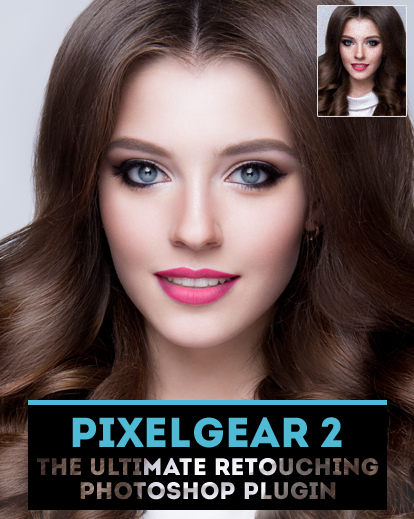
It changes the interface and process behind retouching for skin and the face. You’ll get automatic blemish correction, skin smoothing, and contrast control in an intuitively simple slide in, slide out control scheme. Same power in fewer steps.
And if you’re reading this, you’re seeing PixelGear 2 at a PhotoWhoa price. That means you’re getting the complete Photoshop plug-in for 40% off. But after a few weeks it’s gone. You’ll have to wait for another chance at this Photoshop plugin.[/vc_column_text][/vc_column][/vc_row][vc_row font_color=”#ffffff” css=”.vc_custom_1481264183510{padding-bottom: 4% !important;background-color: #020202 !important;background-position: center !important;background-repeat: no-repeat !important;background-size: cover !important;}” background_style=”normal”][vc_column css=”.vc_custom_1481264198542{padding-top: 5% !important;}”][vc_column_text css=”.vc_custom_1481263695974{margin-bottom: 0px !important;padding-top: 1% !important;padding-right: 10% !important;padding-bottom: 5% !important;padding-left: 10% !important;}”]
What exactly are the benefits of
PixelGear 2 ?
[/vc_column_text][vc_row_inner][vc_column_inner width=”1/2″][vc_single_image image=”387554″ alignment=”center”][/vc_column_inner][vc_column_inner width=”1/2″][vc_column_text css=”.vc_custom_1486532735071{padding-top: 10% !important;}”]PixelGear 2 Benefits :
- Ease of use with the unique on-screen Panel
- No dialog boxes, no extra unnecessary steps
- Non-destructive workflow
- Maximum control using cutting-edge original algorithms
- Super Fast GPU and CPU acceleration for superb
performance in this Photoshop skin retouching plugin
[/vc_column_text][/vc_column_inner][/vc_row_inner][/vc_column][/vc_row][vc_row font_color=”#000000″ css=”.vc_custom_1509948652575{padding-top: 5% !important;background-color: #000000 !important;}”][vc_column][vc_column_text]
A few examples…
[/vc_column_text][/vc_column][/vc_row][vc_row font_color=”#000000″ css=”.vc_custom_1509947698099{padding-top: 5% !important;background-color: #000000 !important;}”][vc_column][vc_single_image image=”461417″ alignment=”center”][vc_single_image image=”461418″ alignment=”center” css=”.vc_custom_1509949735241{padding-top: 3% !important;}”][/vc_column][/vc_row][vc_row font_color=”#000000″ css=”.vc_custom_1509947719519{padding-top: 3% !important;padding-bottom: 3% !important;background-color: #000000 !important;}”][vc_column][vc_single_image image=”461738″ alignment=”center”][vc_single_image image=”461737″ alignment=”center” css=”.vc_custom_1509949771278{padding-top: 3% !important;}”][/vc_column][/vc_row][vc_row][vc_column][vc_separator css=”.vc_custom_1475023283329{padding-top: 3% !important;}”][vc_column_text css=”.vc_custom_1510545507777{padding-top: 4% !important;padding-right: 12% !important;padding-bottom: 4% !important;padding-left: 12% !important;}”]PixelGear 2 is a Photoshop plug-in developed by PS Kiss. It condenses Photoshop into three panels that allow you to retouch skin, enhance shadows/highlights and overall contrast, while sharpening and popping out details in a unique and innovative interface that looks and works like a smartphone app.
It simplifies retouching to a defined and regular method you can intuitively grasp—without having to get a degree in computer engineering (if you think of Photoshop in that way). That said, every automatic adjustment can be customized. Every edit is non-destructive. So you can always go over with finer and finer changes if need be.
If you want to learn more go here . PixelGear 2 Photoshop skin retouching plugin works with Photoshop CC and higher for Mac OS X 10.7 + & Windows 7/8 (64 bit only). It does not work with Photoshop CS6.[/vc_column_text][/vc_column][/vc_row][vc_row font_color=”#ffffff” css=”.vc_custom_1509699663585{padding-bottom: 3% !important;background-color: #000000 !important;}”][vc_column][vc_column_text css=”.vc_custom_1481265148967{padding-top: 2% !important;padding-bottom: 3% !important;}”]
What is PixelGear 2? Why should I buy it?
[/vc_column_text][vc_video link=”https://www.youtube.com/watch?v=tbUB7NWQtHw” css=”.vc_custom_1509699574504{padding-right: 10% !important;padding-left: 10% !important;}”][/vc_column][/vc_row][vc_row font_color=”” css=”.vc_custom_1440465985813{padding-top: 10% !important;padding-bottom: 10% !important;background-color: #f7f7f9 !important;}”][vc_column][vc_column_text]
Get Photoshop Power in fewer steps
[/vc_column_text][vc_column_text][add_to_cart_or_expire_btn][/vc_column_text][/vc_column][/vc_row]

Onyango Geofrey –
I would like to get the links on which I can download from Photoshop skin retouch, brushes, clour balancing plugins and photo cooling plugins.